Assignment 2-1 Applet
Complete each of the following using NetBeans and Java.
For each of the following, be sure use the proper headings, indentation and internal comments.All assignments must have the following comment headings:
| /* | Name : |
| Due Date : | |
| Program Name : | |
| Description : | |
| */ |
Save the .java and .class files in your work directory, compile and test.
1. Create a java applet (and corresponding html file) that will display a
famous quote. You must use colours and different fonts in the applet. (Use at least 2 lines for the quote, at least 2 fonts, at least 2 colours). Here are
some examples:
| Here are some quotes from past years... |
What colours can you use?
- Text colours:
- Here are some easy ones. Color fields. E.g. instead of saying Color.red you could say: Color.green.
- Harder ones. To create "special colours" you need to use setColor
and create your own special colour like this:

where r, g, and b are numbers from 0 to 255.
They represent how much red, green and blue to put in the colour.
0 - means none
255 - means as much as possible

bring in the coveted purple:

Here is a web page with RGB values for various colours http://web.njit.edu/~kevin/rgb.txt.html
NOTE: use the R;G;B Dec column.
- Background colour:
- A bit harder. Use
setBackground
- A bit harder. Use
setBackground
- Fonts:
- If you want to know more about fonts. The basics are covered below. To see
several option look at the
Fonts page at Sun and look at the Fields (attributes). Fonts depend on your
computer. If you try to use a 'crazy' font that I don't have, it will appear as
a 'default' (plain) font.
Here is a sample:
- If you want to know more about fonts. The basics are covered below. To see
several option look at the
Fonts page at Sun and look at the Fields (attributes). Fonts depend on your
computer. If you try to use a 'crazy' font that I don't have, it will appear as
a 'default' (plain) font.

gives a font of type Arial that is bold and italic and is size 25. Here are some more notes on using fonts.
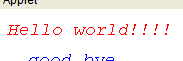
| Important Note! |
Set the size of the window for your applet. Make sure that the window just fits around your text. E.g. make sure it is not too big or too small to display your quote. |
Hand In:
When completed, e-mail the compressed project folder AND a screenshot of your applet to .
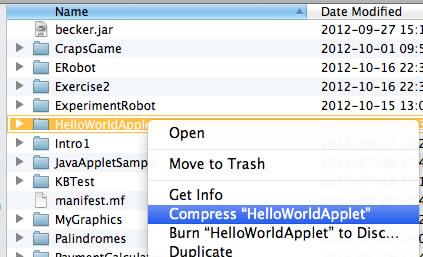
To compress a folder:
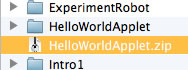
| 1. Browse to the applet's folder in finder. | 2. Right click on the folder name.Select "Compress <folder name>". | 3. You will see the compressed folder with a image with a zipper. (It may end with a ".zip".) Send this file. |
 |
 |
 |
Check the Late Submissions policy.